
Step 1: Enable Inventory Tracking
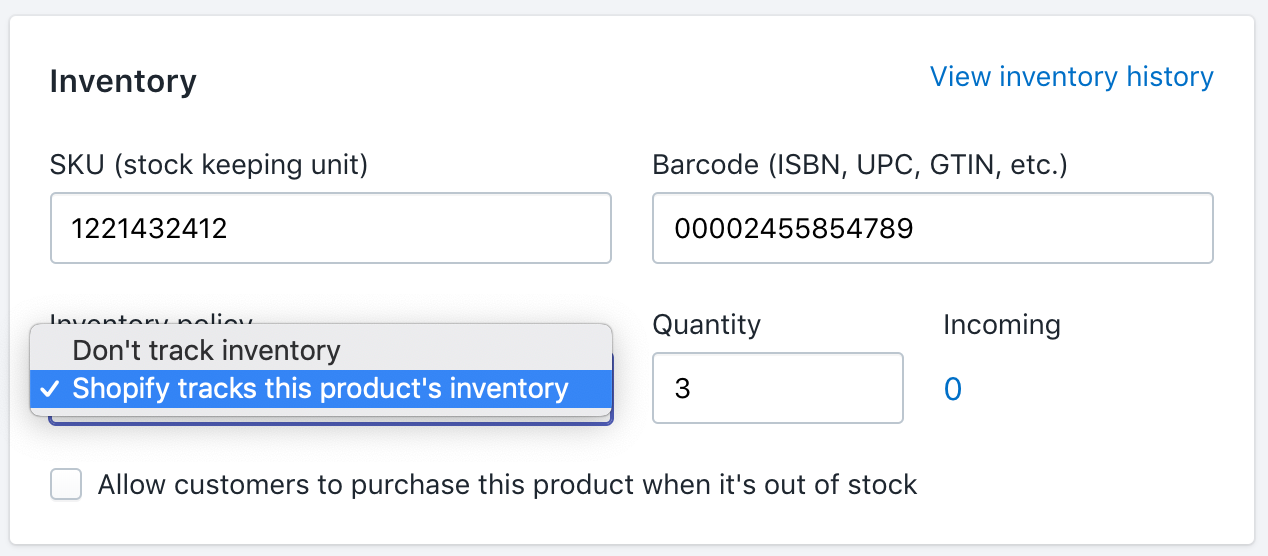
Products synced from Lightspeed to Shopify have this step enabled by default. You can spot check a few products to make sure. For most clients you can skip this step and move to Step 2.
Steps:
-
From your Shopify admin, go to Products.
-
Click one of your products.
-
Optional: Open a variant.
-
In the Inventory section, check Shopify Tracks this product's inventory.
-
Click Save.
Step 2: Set your Collections Rule
To hide out of stock products you need to set a rule for each collection. There is no option to do this for all collections (categories) at once. You need to set a rule for each collection.
Depending on your version of Shopify this is called 'Conditions' or 'Terms'. In Shopify you can set conditions for each collection.
The goal is to create a rule that does this:
"For all products in X collection only show items with inventory greater than 0"
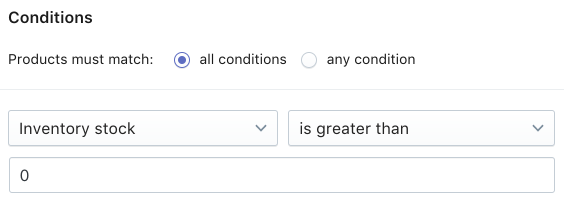
To do this you need to click on the collection and set a condition rule.
A. For Products must match, select all conditions.
B. For Inventory stock, select is greater than and enter 0.
That rule will hide all products that have 0 stock on the collection page.
Use an App Instead
Alternatively, there are some good Shopify Apps that can do even more. For example, this one does a pretty good job.