
Inventory Page:

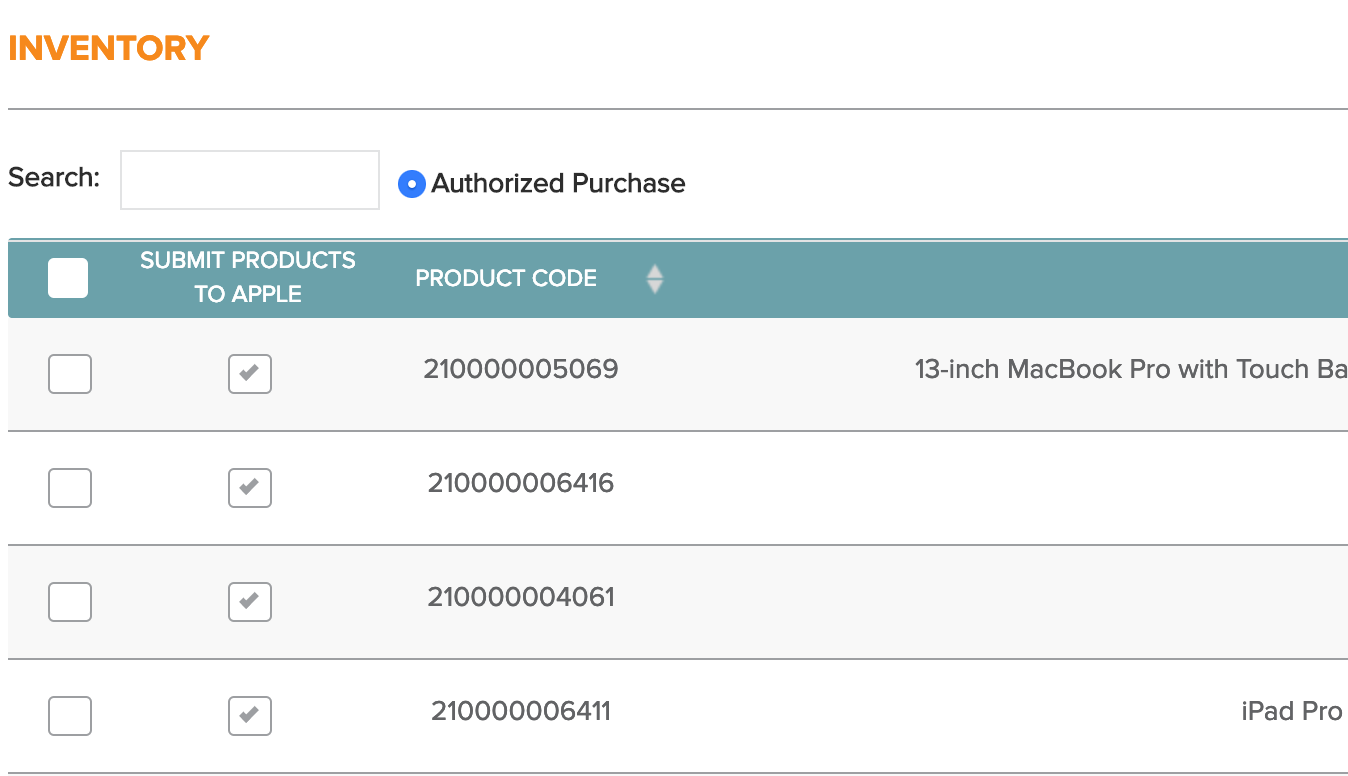
Nothing should be selected other than the checkboxes that are designated to the serial numbers that you are trying to enroll. Ignore all buttons that are on the bottom of the page. You do not need to push these buttons or save anywhere. You only need to click the checkbox next to the device that you want to enroll.
Step 1: Locate the Serial Number that you are trying to enroll
Step 2: Select the “Submit Products to Apple” Checkbox correlating to that serial number
If there are multiple serial numbers that require Apple Device Enrollment on one order, please select all serial numbers for that order.
Invoices Page:

Step 3: The order for the correlated serial numbers should now appear as a blue background with a yellow dot. See example below.

Step 4: Select the invoice and click on “Sync to Apple Device Enrollment” or "Sync orders to Apple DEP" button at the bottom of the screen. The button name may slightly vary depending on which version you are using.

The order should return back with a blue background with a green dot. This means that the request has been successfully sent.

Although the request might’ve been sent, we need to check if Apple has accepted this order and enrolled to Apple Device Enrollment successfully.
Step 5: At the bottom of the Invoices tab there is a green MORE button. Under that button you will find a button called: Check Transaction Status.

Click this button.
Step 5a.: Click on the green “More” button on the bottom of the page.
Step 5b: Select “Check Transaction Status” button.
Step 6: Please find the order that was just enrolled on the Invoices Tab.
You should now see the order with a green background with a green dot. This means that the order was successfully sent over to Apple Device Enrollment.

The serial numbers attached to this invoice should now appear in your Apple Device Enrollment portal (MDM portal) which could take up to 24 hours to display.
Other Errors:
If a RED background appears for any of the orders that you just tried to enroll, please reach out to info@hyperspacehq.com to troubleshoot the order.
